Bookings overview
Understand the Bookings list, columns, statuses, and how to find bookings.
A booking is a single shift you need to fill — a client, a service, and a start and end time. Bookings are the core of the Admin Portal: timesheets, expenses, and invoices all flow from them.
Open Bookings from the sidebar (under the Bookings group) to see the list of all your bookings.
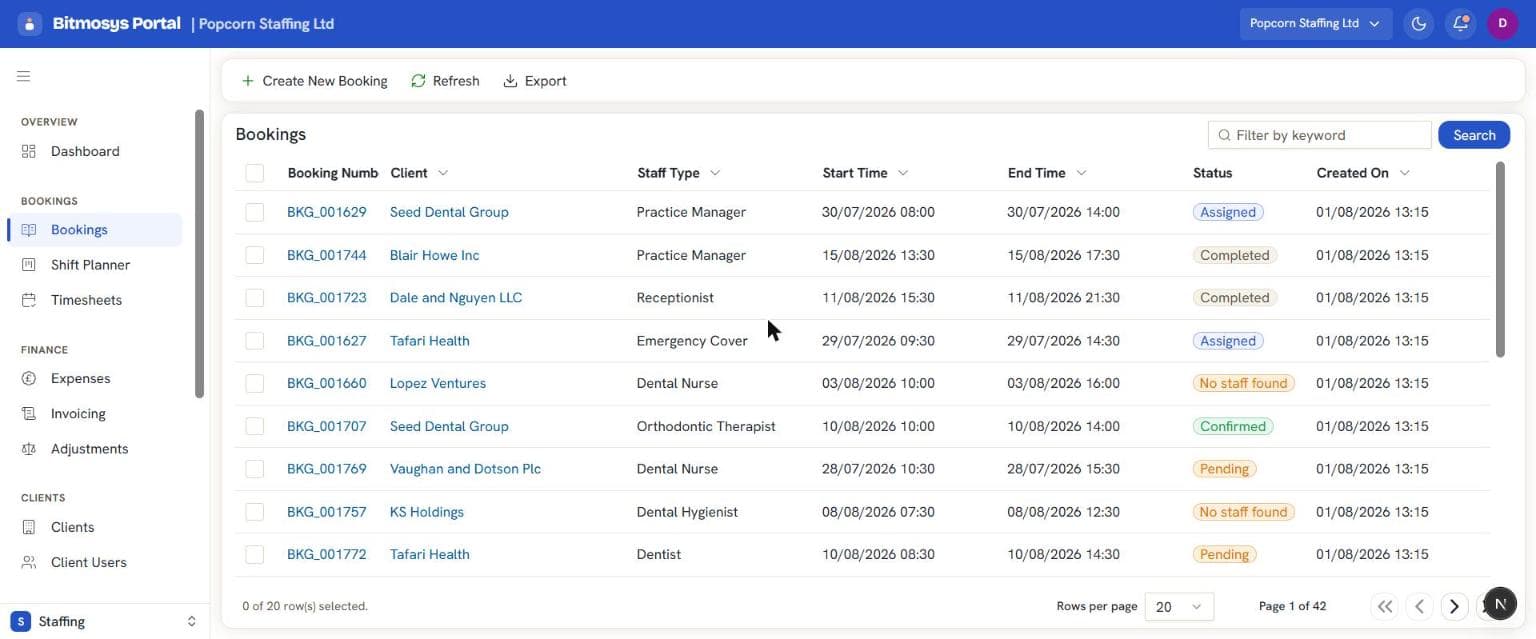
The Bookings list
Each row is one booking. The table shows these columns:
Column | What it shows |
|---|---|
| Booking Number | The booking's reference. Click it to open the full booking page. |
| Client | The client the shift is for. Click it to open the client. |
| Staff Type | The service required — from your service catalogue. |
| Start Time | When the shift starts. |
| End Time | When the shift ends. |
| Status | The booking's current status (see below). |
| Created On | When the booking was raised. |
Above the table, the command bar has two buttons: Create New Booking (green, covered in Creating a booking) and Refresh.
Finding bookings
- Keyword search — type in the Filter by keyword box and press Enter.
- Column filters — click the Status, Start Time, End Time, Booking Number, or Created On column headers to filter by that column. For example, filter Status to Pending to see everything awaiting confirmation.
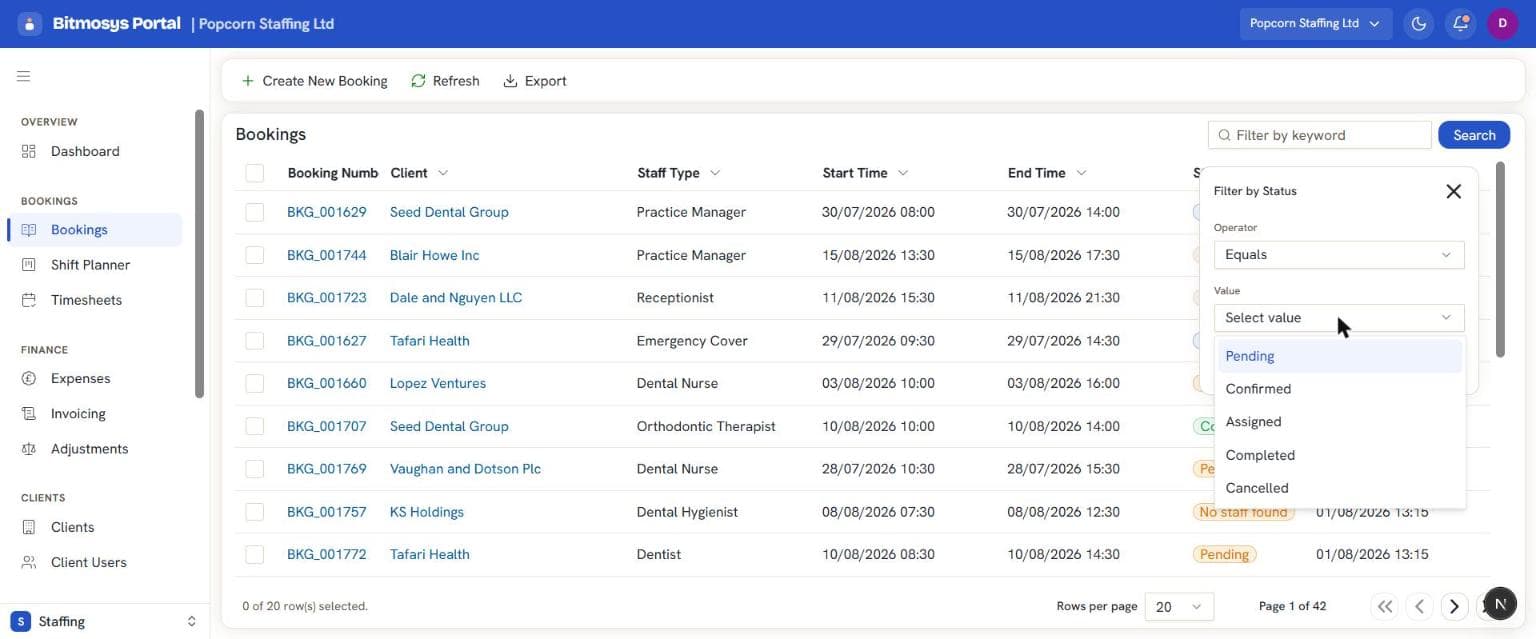
Booking statuses
A booking moves through these statuses over its life:
Status | Badge colour | Meaning |
|---|---|---|
| Pending | Amber | Raised and awaiting confirmation. |
| Confirmed | Green | Approved and ready to be filled. |
| Assigned | Blue | A worker has been assigned to the shift. |
| Completed | Grey | The shift has taken place. |
| Cancelled | Red | The booking was cancelled and will not go ahead. |
A status keeps the same badge colour everywhere it appears — the Bookings list, the booking detail panel, and the Shift Planner's shift cards — so you can read a booking's state at a glance on any screen.
Depending on your company's configuration, a booking can also show one of four automatic in-flight statuses while the platform is working on it: Matching staff (blue), No staff found (amber), Escalated (red), and In Progress (teal) while a shift is underway.
New bookings start as Pending — or Confirmed if you tick Create as Confirmed when creating them.
If your company turns on auto-assign, you can fill a whole week of open shifts in one reviewed run from the Shift Planner. See Auto-assign and matching.
Opening a booking
- Click a row to open the booking's detail panel on the right, where you can assign staff, add notes, and notify the worker. See Managing a booking.
- Click the Booking Number to open the booking's full page instead, with its Overview, Timesheet, and Expenses tabs.