Planner overview
The week at a glance — every booking and internal shift, who is on it, what is still open and what would break a rule — with the tools to fill, move and publish the week in place.
The Planner shows a week of work as a grid: one column per day, one row per person, and a card (a chip) for every booking or internal shift. Above the people sits the Open shifts lane with everything nobody is on yet. From the same screen you create bookings, drag them between people and days, copy last week, and save or publish the result.
Open Planner from the sidebar (under the Bookings group in the Staffing area). It replaces the older Shift Planner and Rota pages, whose links land here.
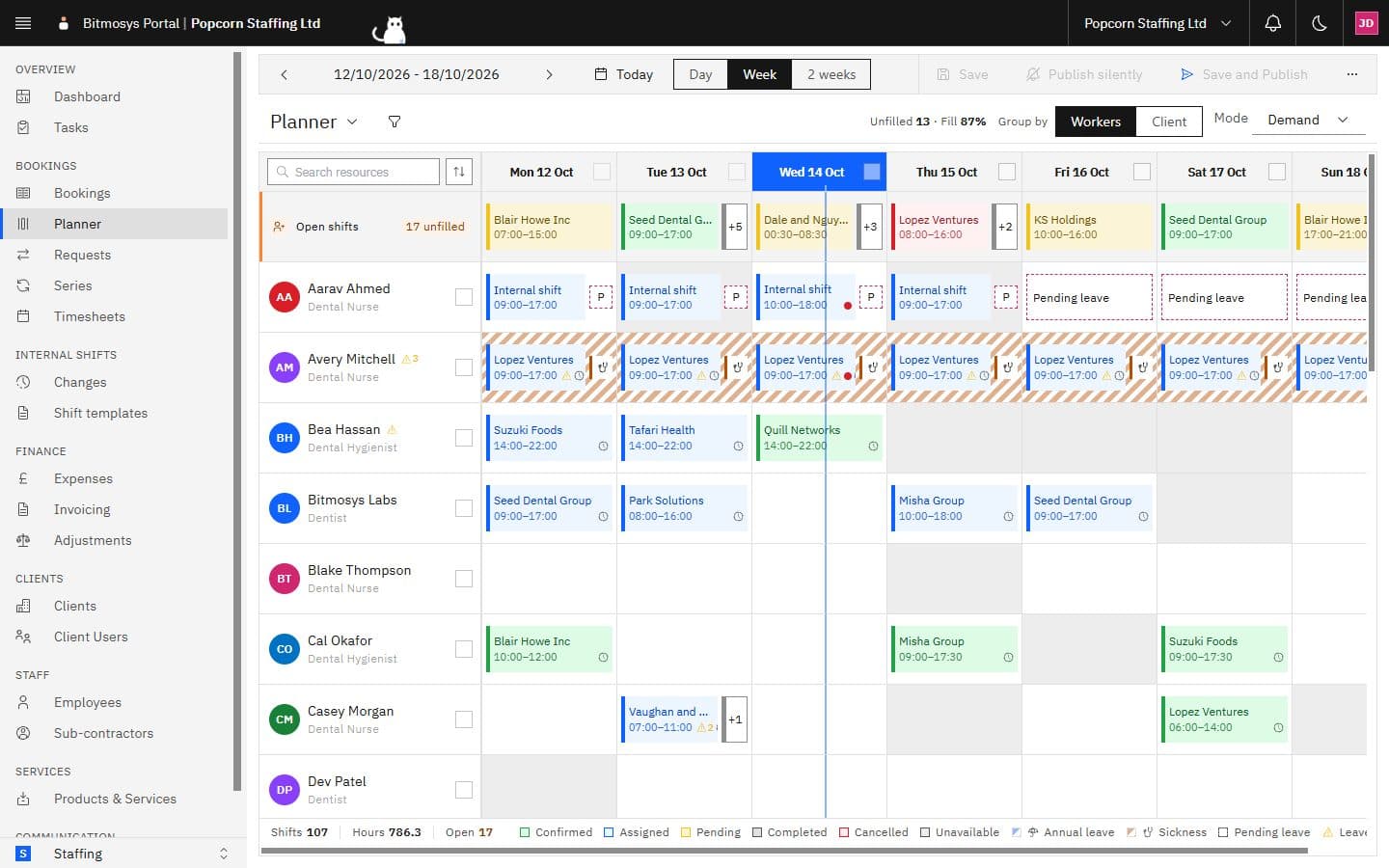
The screen, top to bottom
The command bar. The arrows step the visible range back and forward and the date between them — the first day you are looking at — opens a date picker (Jump to a date). Today brings you back. Then come the week's commands: New shift; Templates ▾ with Copy last week, Apply template and Save as template; Edit / Done, Discard, Save and Save and Publish, whose chevron holds Publish silently and Publish week; then Export (PDF or CSV), Details (show or hide the chip details) and Refresh. When auto-assign is enabled, Auto-assign ▾ (Auto-assign week, Fix clashes) sits after Templates. At the right-hand end, Day · Week · 2 weeks sets how much you see. On a narrow window the commands that don't fit move into the ⋯ (More actions) menu, which sits just before the range switch; the arrows and Today always stay where they are.
The filter row. The Planner ▾ menu switches between saved views, the funnel icon opens the filters, the figures read Unfilled N · Fill N% for the client bookings on screen, and Group by switches the rows between Workers and Client. Mode sets the lens (see below).
The grid. Day headers across the top — today's is filled, and a thin line runs down that column at the current time of day. The Open shifts lane comes first, then a row per person: avatar, name and role, and a chip for each of their items. Past days are shaded.
The foot. Shifts, Hours and Open for the week, then the legend: the five status colours, the Unavailable shading, each leave category in use, Pending leave and Leave conflict.
Reading the grid explains every mark on a chip, a name or a cell.
Who can do what
- Anyone who can view bookings or shifts can open the Planner, change the range, filter, export, and open a card to read it.
- Planning — Edit, creating on the grid, Copy last week, Save and the publish commands, approving requests — needs the permission to manage bookings (client work) or shifts (internal work).
- Pay cost, margin and labour figures only appear to people who may see pay rates.
Modes and wording
The Planner reads the week through a Mode that suits the company's industry, and its wording follows:
Mode | Default for | What a row means | Wording |
|---|---|---|---|
| Demand | Staffing agencies | A worker, free unless their availability says otherwise | bookings, clients, workers |
| Coverage | Hospitality | A team member on the site's rota, unavailable on time off or leave | shifts, sites, team members |
| Visits | Cleaning | A team member's visits, by site | visits, sites, team members |
An agency's own office rota — reception, drivers, a trainer — lives on the same
grid as internal shifts (the Internal shift cards), created with New
shift or a shift template. This guide uses the agency words; swap in yours.
Day, week, two weeks
- Week is where you plan: it is the only range where Edit is available, because the draft, the publish and the auto-assign run are all kept per week.
- Day lays the chosen day out on a 24-hour axis, one row per person with the open shifts first; overlapping items get their own lanes. Click an item to open it.
- 2 weeks shows fourteen columns for reading ahead; the chips are the same.
Links to the Planner can carry a week: /planner?week=2026-10-12 opens the
week of 12 October.
Next steps
- Reading the grid — chips, warning glyphs, leave and unavailability, the totals band.
- Filters, grouping and views — the filter panel, group by client, saved views, export.
- Planning the week — create from a cell, drag and drop, the draft, save and publish, copy last week, internal shifts.
- Open shifts, requests and series — offering a shift to the team, claims and swaps, confirmation, no-shows, standing weekly patterns.
- Scheduling settings — working-time rules, defaults, open-shift and confirmation policies.