Sending from a template
Email a client from an invoice or booking, remind a worker about a timesheet by email or SMS, and send reminders in bulk — all from one compose sheet.
Every send starts from a record. The record's action opens the compose sheet with your default template already rendered for that record — the recipient filled in, the fields replaced with the record's values — so sending is a quick read-through and Send. You can switch template, change the wording, or add recipients before it goes.
Where to send from
Record | Action | Goes to | Template kind |
|---|---|---|---|
| Invoice | Email to client (detail panel, once the invoice is client-facing — approved or later) | The client's contact | Email · Invoice |
| Booking | Confirm and email (a Pending booking's command bar and panel footer) | The client's booking contact | Email · Booking |
| Booking | Email client (⋯ menu, any booking that isn't cancelled) | The client's booking contact | Email · Booking |
| Timesheet | Send reminder (a Pending timesheet's panel footer and command bar) | The worker | Email · Timesheet |
| Timesheet | Send reminder by SMS (⋯ menu of a Pending timesheet's page) | The worker's mobile | SMS · Timesheet |
| Timesheets list | Send reminder (N) in the batch bar, with pending timesheets ticked | Each timesheet's worker | Email · Timesheet |
Confirm and email does two things: it confirms the booking (the usual automatic confirmation to the client is held back, because you're about to write it), then opens the sheet. If you close the sheet without sending, the booking stays confirmed and the portal tells you no email was sent — use Email client to send later.
The compose sheet
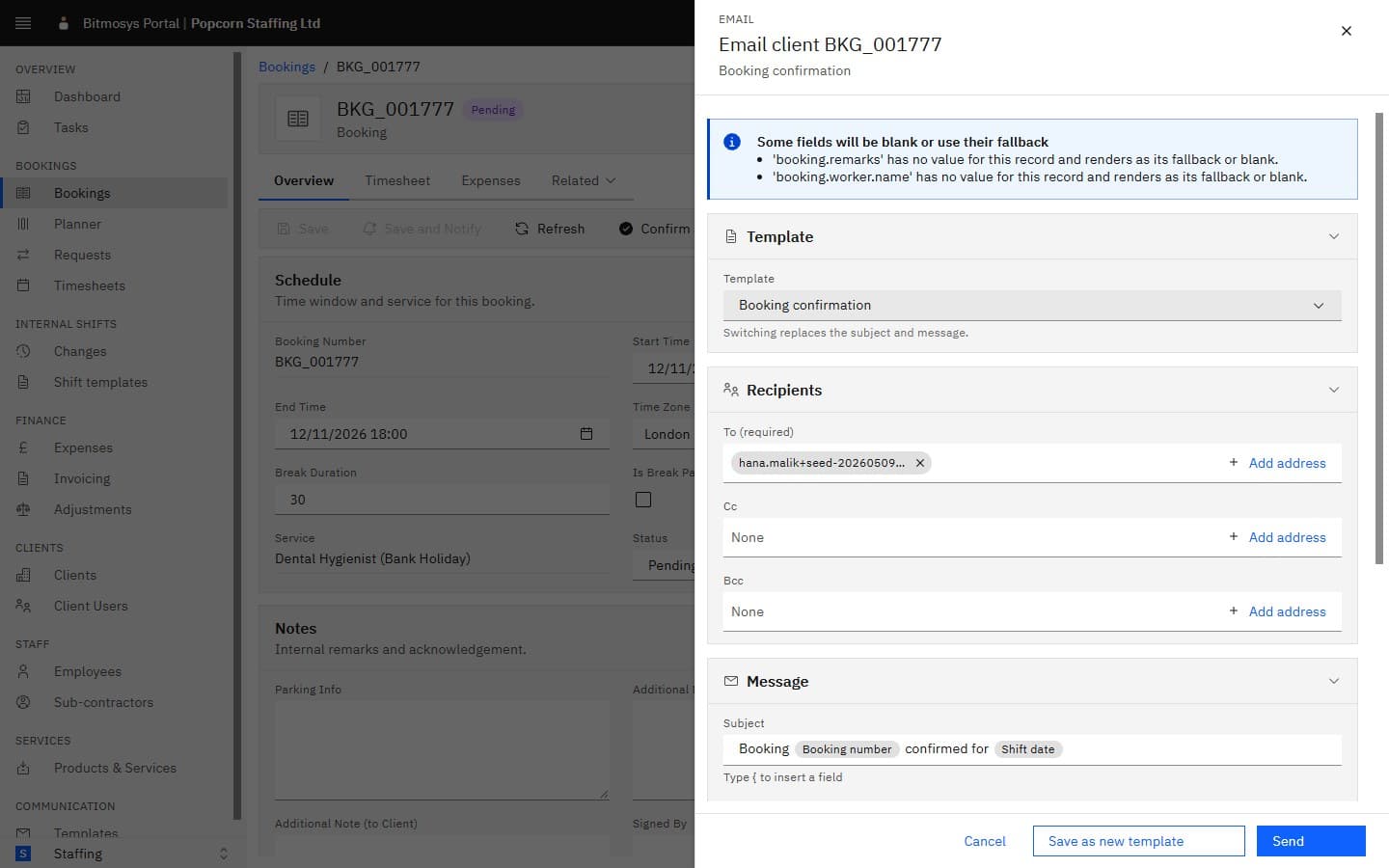
The title says what you're doing and to what — Email invoice INV-2026-0004, Send reminder (3 timesheets) — and the line under it names the template in use. The sheet has four sections:
- Template — the picker, grouped into Company templates, My templates and System templates, with your default preselected. Switching replaces the subject and message with the other template's, rendered for the same record.
- Recipients — To (required), Cc and Bcc as address chips. To is filled from the record: the client's contact or booking mailbox, or the worker's sign-in email. Add an address by typing it and pressing Enter; remove one with its ×. Cc and Bcc start from the sending settings under Settings → Messages when you've set them for that message.
- Message — the Subject and the body, already rendered, with a compact
editor (bold, italic, underline, lists, link, and Insert field or
{to add a field). For an invoice, Attach the invoice PDF is a switch; other records have no attachment. - Preview (collapsed) — the email exactly as it will arrive.
Two notices can appear above the sections:
- This invoice is missing details the email needs — a required field (the record's number, your organisation's name) has no value, so Send is held until the record is fixed.
- Some fields will be blank or use their fallback — an optional field is empty on this record. Fine to send; the notice lists which, so you can check the wording still reads well.
If nothing is published for that kind and record type — no company default and no system default — the sheet says No email template for this invoice: create one in Templates, then come back.
Send, and save as a template
Send delivers the message and closes the sheet. The record's activity and the Delivery log under Settings → Messages record the send.
Save as new template (for people with the templates permission) keeps your edits for next time: give the template a Name and it's created in Templates as a company draft. Open it there to finish it and Publish before it can be picked in the sheet.
Sends are protected against double delivery: pressing Send twice, or a flaky connection retrying, delivers once.
Reminding many workers at once
On the Timesheets list, tick the pending timesheets and click Send reminder (N) in the batch bar. The sheet opens once for all of them:
- Recipients lists each timesheet with its worker and the address it goes to. There's no To field to edit — each reminder goes to its own worker — but Cc and Bcc apply to every message.
- Skipped (N) lists the timesheets that won't get a reminder and why: no longer pending, no email address on file, or not found. If every selected timesheet is skipped the sheet says Nobody to send to.
- The Message and Preview show the template with sample data, since each worker's message is rendered for their own timesheet at send time.
Send sends one email per timesheet. A timesheet whose record is missing a required field is skipped rather than holding up the rest, and the result tells you how many went and how many were skipped.