Scheduling settings
The working-time rules the Planner warns about, what a new shift starts with, who may take open shifts and when, swaps and confirmation, and the money thresholds.
Open the Settings area from the sidebar switcher, choose Staffing, and stay on the Scheduling tab. Once something has changed, Save and Discard appear at the top of the page; one Save covers every section and applies to the whole company.
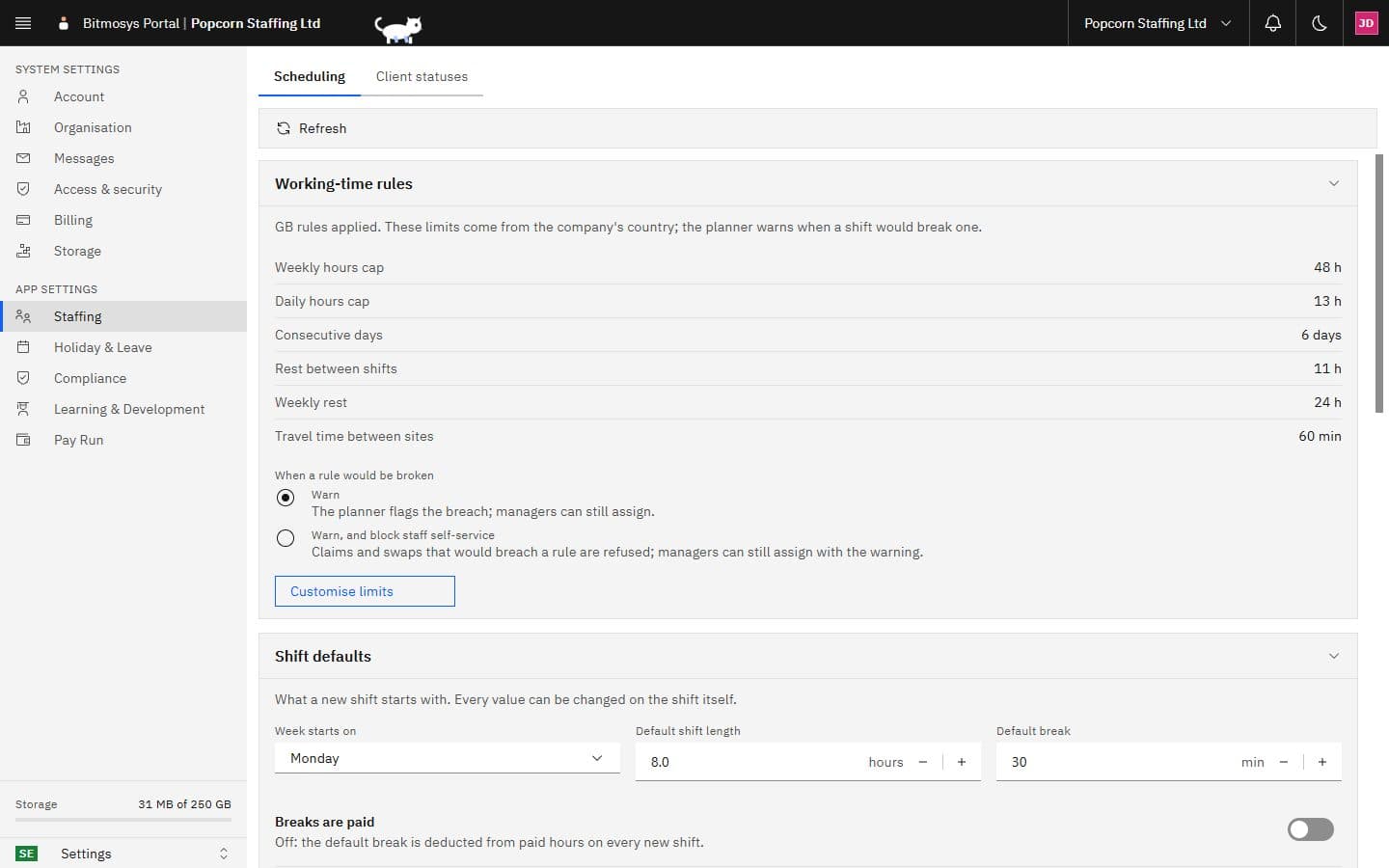
Working-time rules
The limits come from the company's country — for the UK: a Weekly hours cap of 48 h, a Daily hours cap of 13 h, Consecutive days 6, Rest between shifts 11 h, Weekly rest 24 h and Travel time between sites 60 min. The Planner marks a shift that would break one with the amber glyph described in Reading the grid.
When a rule would be broken:
- Warn — the Planner flags the breach; managers can still assign.
- Warn, and block staff self-service — claims and swaps that would breach a rule are refused; managers can still assign, with the warning.
Customise limits opens a sheet where each limit can be set for the company; a customised value is tagged customised in the list, and the country's rule applies wherever a limit is left at (or reset to) its default.
Shift defaults
What a new shift starts with; every value can be changed on the shift itself.
Setting | Meaning |
|---|---|
| Week starts on | Monday or Sunday — the first column of the Planner week. |
| Default shift length | Hours, used to set the end time from the start. |
| Default break | Minutes. |
| Breaks are paid | Off: the default break is deducted from paid hours on every new shift. |
| Notify workers when publishing | The publish dialog starts with notifications on; it can still be switched off per publish. |
Open shifts and requests
Setting | Choices |
|---|---|
| Workers can take open shifts | Off — only managers assign. With approval — a claim waits on the Requests page. Instantly — the first eligible claim is assigned at once. |
| Who sees them first | Everyone, or Client-preferred workers first, everyone after a delay. |
| Everyone sees them after | The delay, in hours, before the rest of the team is told. |
| Swaps and give-aways | Off, With approval, or Approve automatically with enough notice. |
| Approve automatically when the shift is more than | Hours away for an automatic approval. |
| Shift confirmation | Off, Ask staff to confirm, or Ask, and reopen the shift if unconfirmed before it starts. |
| Reopen if unconfirmed this long before the start | 24, 72 or 168 hours. |
How these play out day to day is in Open shifts, requests and series.
Compliance and money
- Require every compliance document — only workers holding every required document can be assigned; otherwise a missing document is a warning. A client's own list of required documents is set on the client's Requirements tab.
- Warn when margin falls below (agencies, cleaning) — the percentage under which the week totals band turns amber.
- Labour cost target (hospitality) — the labour % the band compares to.
Auto-assign
Collapsed at the foot of the page. Enable auto-assign lets the Planner propose workers for a whole week in one run — proposals always need your review before anything is committed — and Priority chooses what the run favours: Keep rosters stable, Lowest cost or Fair spread of hours. See Auto-assign and matching.