Planning the week
Create a booking from a cell, open a card, drag work between people and days, work in a draft, then save or publish — plus copy last week, internal shifts and templates.
Create from a cell
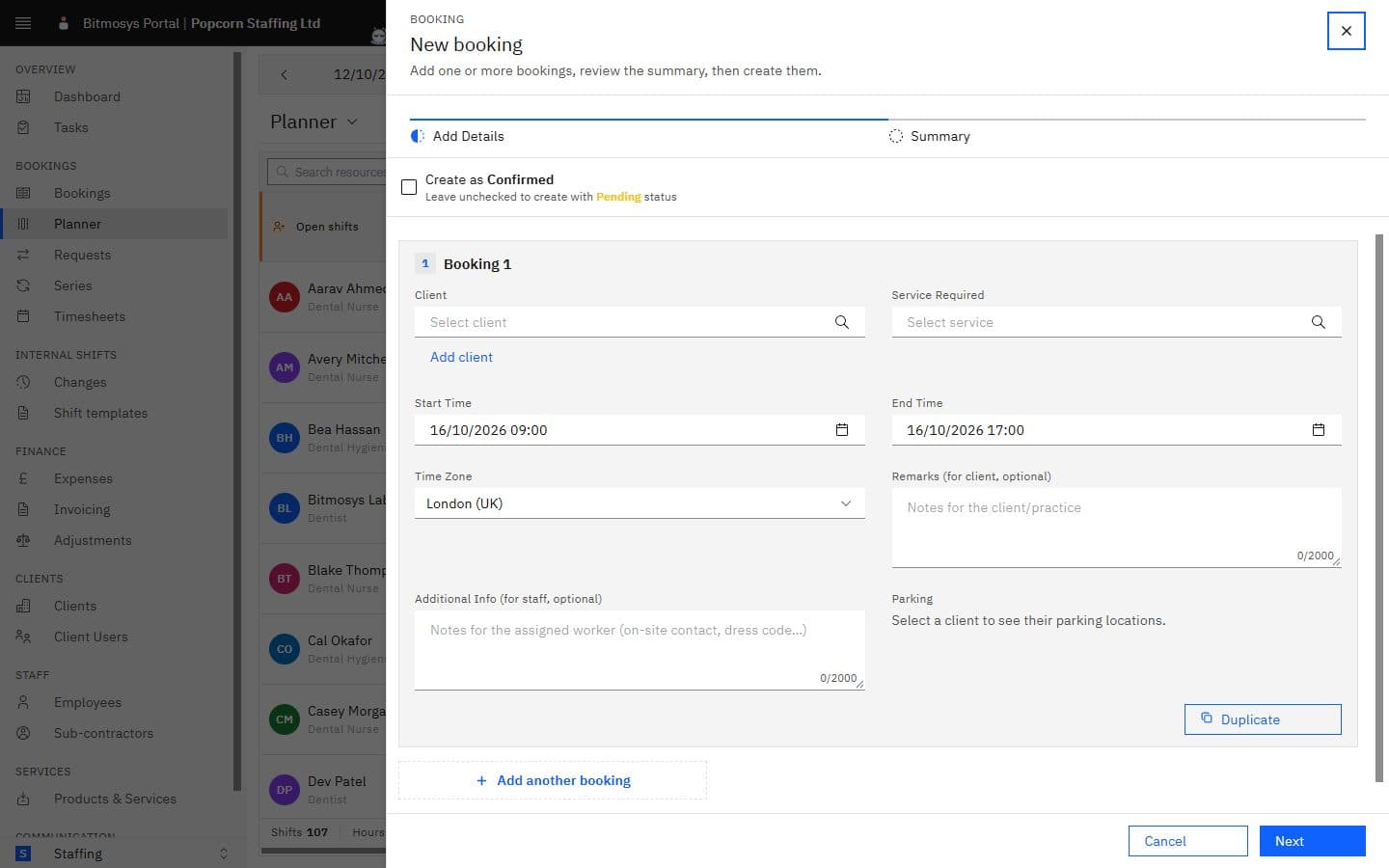
Click an empty cell in a person's row and the New booking sheet opens with that day already filled in and the company's default times. Pick the client and service, add what the client or the worker needs to know, and create it — the steps are the same as Creating a booking. The Planner then puts the booking on the person whose row you clicked; if they can't take it (a rule, a clash, a missing document) it tells you Created, but not assigned and leaves the booking in the Open shifts lane for you to place.
Open a card
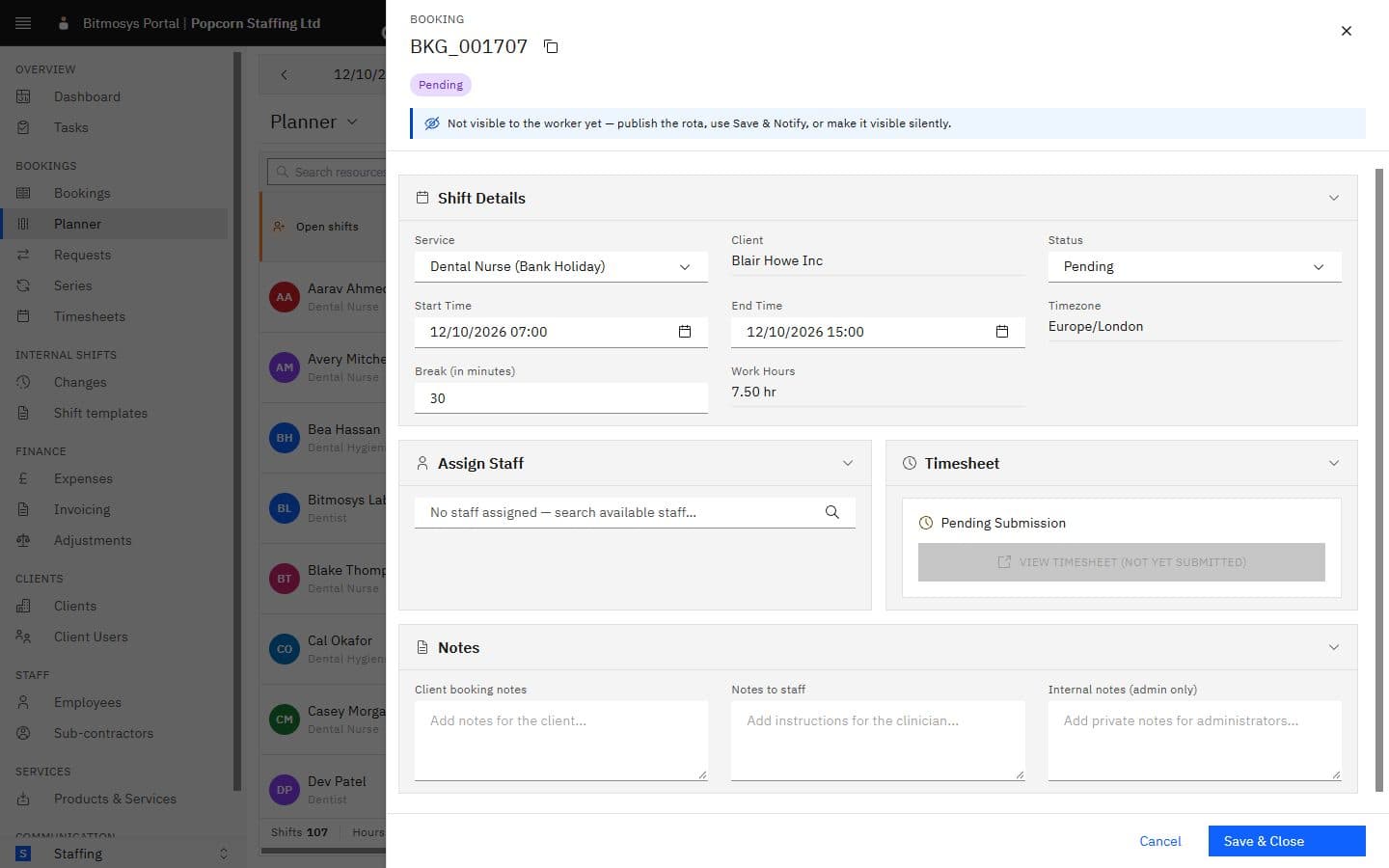
Click a chip to open the booking's panel on the right: its number and status, Shift Details (service, client, status, start and end, time zone, break, work hours), Assign Staff, the Timesheet and Notes. The footer has Save & Close, and Save & Notify once a worker is on it; a Pending booking also offers Confirm and email. A blue notice at the top means the booking is not visible to the worker yet — publish the week, use Save & Notify, or make it visible silently from the notice. Everything in the panel is described in Managing a booking.
An Internal shift card opens the shift sheet instead — start and end, break,
site, position, person, notes — with Assign, Unassign, Broadcast,
Cancel shift and Delete (only while it has never been published).
Drag and drop
Press Edit (Week range only) and the chips become draggable:
- Drag a chip onto another person on the same day to reassign it, or onto another day — the same person's or anyone's — to move it. The chip keeps its times.
- Drag a chip from the Open shifts lane onto a person to fill it.
- Hold Alt (or Ctrl) when you drop to duplicate the booking instead of moving it. The copy is created straight away, unpublished.
While you drag, every cell tints to say what the drop would mean:
Tint | Meaning |
|---|---|
| Green | Fine. |
| Amber | Allowed, but it would raise a warning — the reason is shown (over the weekly cap, a short rest, a document expiring, a soft preference). Whether staff self-service is also blocked on these is a setting. |
| Red | Refused: already on something at that time, unavailable, missing a required document, or not eligible for the client. The chip springs back. |
Dropping on approved leave asks Place this shift on leave? — Override and place goes ahead and records the override on the worker's activity trail. Internal shifts and client-grouped rows don't accept drops.
Press Done to leave Edit mode. Your moves are kept in a draft — saved automatically as you go, marked with a dot on each modified chip, and listed in the chip's change history — until you Save or Discard them.
Save and publish
Three commands close a week, from quietest to loudest:
Command | What it does |
|---|---|
| Save | Writes the draft. Workers don't see the changes yet; the chips carry the Not published glyph. |
| Publish silently | Makes the week's saved changes visible in workers' apps without sending anything. |
| Save and Publish | Writes the draft, makes it visible, and sends each affected worker one rota notification. When nothing is modified but some items are unpublished it reads Publish (N). |
Each asks you to confirm — Save changes?, Publish without notifying?, Save and publish changes? — with Keep editing as the way back. Open shifts stay unpublished until someone is assigned.
Short notice. If a published item is moved to start inside the company's notice window, the confirm says so and asks Save anyway? The people on it are told the change came at short notice, and the change log records it. The same check runs when you cancel a booking inside the window.
Discard throws the draft away (Discard all changes? — it cannot be undone).
Copy last week
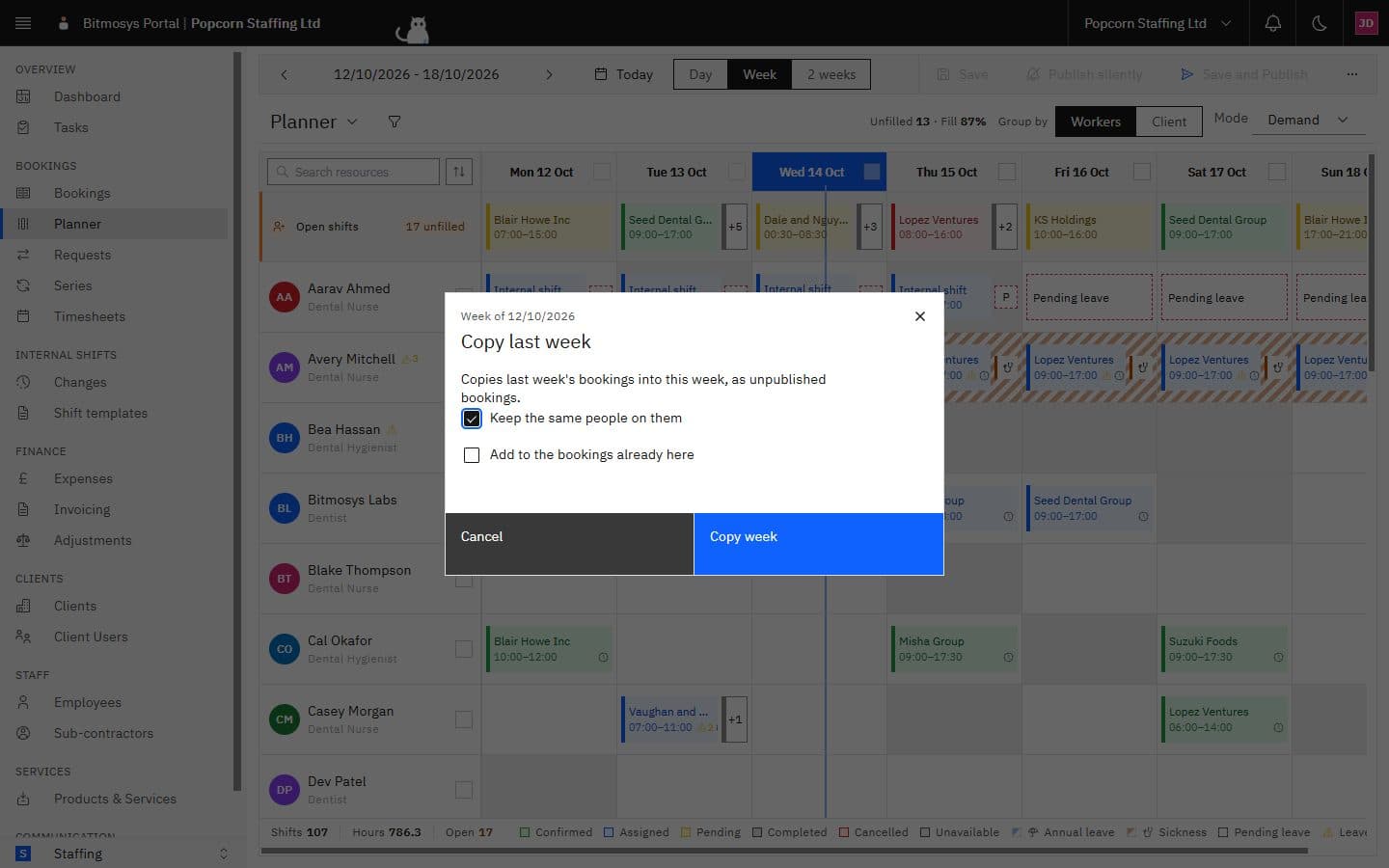
Copy last week (in the bar or under ⋯) copies last week's bookings into the week you're looking at, as unpublished bookings, with two choices: Keep the same people on them, and Add to the bookings already here when the week isn't empty. It's unavailable while the draft has unsaved moves — save or discard first.
Internal shifts and templates
The company's own rota uses the same grid. New shift opens the shift
sheet — When (start, end, Crosses midnight, break and whether it's
paid), Where and who (site, position, a person or Open — nobody yet),
Notes — and adds an Internal shift card to the week. People on leave
that day can't be picked.
- Apply template (in the Templates ▾ group) adds a saved pattern to the week — choose the template, keep or drop the usual people it names — and tells you Added N shifts. Undo in that message takes them off again (any you have already published stay), so a template applied to the wrong week is one click to reverse.
- Save as template (same group) saves the week's internal shifts under a name, for Apply template later. Templates are managed under Shift templates in the sidebar.
- Publish week (under the chevron beside Save and Publish) publishes the week's internal shifts: the dialog says how many go out for the first time and how many changed ones are announced again, lets you notify only the people with changes, everyone on the week or nobody, and lists the week's concerns under Before you publish.
- Changes in the sidebar is the change log of every internal shift.
Auto-assign
When auto-assign is enabled in Scheduling settings, the bar gains Auto-assign week: the Planner proposes workers for the open shifts and you review before anything is committed. The checkboxes in the day headers and beside names narrow the run to a selection, with Fix clashes for unpublished double-bookings. See Auto-assign and matching.