Writing a template
Create a template, write it in the editor with fields and a live preview, publish it, and manage its versions, default and archive.
Creating a template
Click New template in the command bar. The sheet asks for:
- Name (required) and an optional Description — what the template is for, shown on the template page.
- Kind — Email or SMS (Document is listed but coming soon).
- Entity — the record type the template is written for: Invoice, Timesheet, Booking… This is fixed once the template is created, because it decides which fields the template can use.
- Visibility — Company (Everyone in the company can use it) or Personal (Only you can see and use it). Company templates need the templates permission; anyone can create a personal one.
Click Create. The template opens on its own page, ready for its content.
Starting from something that already works is usually quicker: click Duplicate on a system default or on any template in the list, give the copy a Name and a Visibility, and edit from there.
The template page
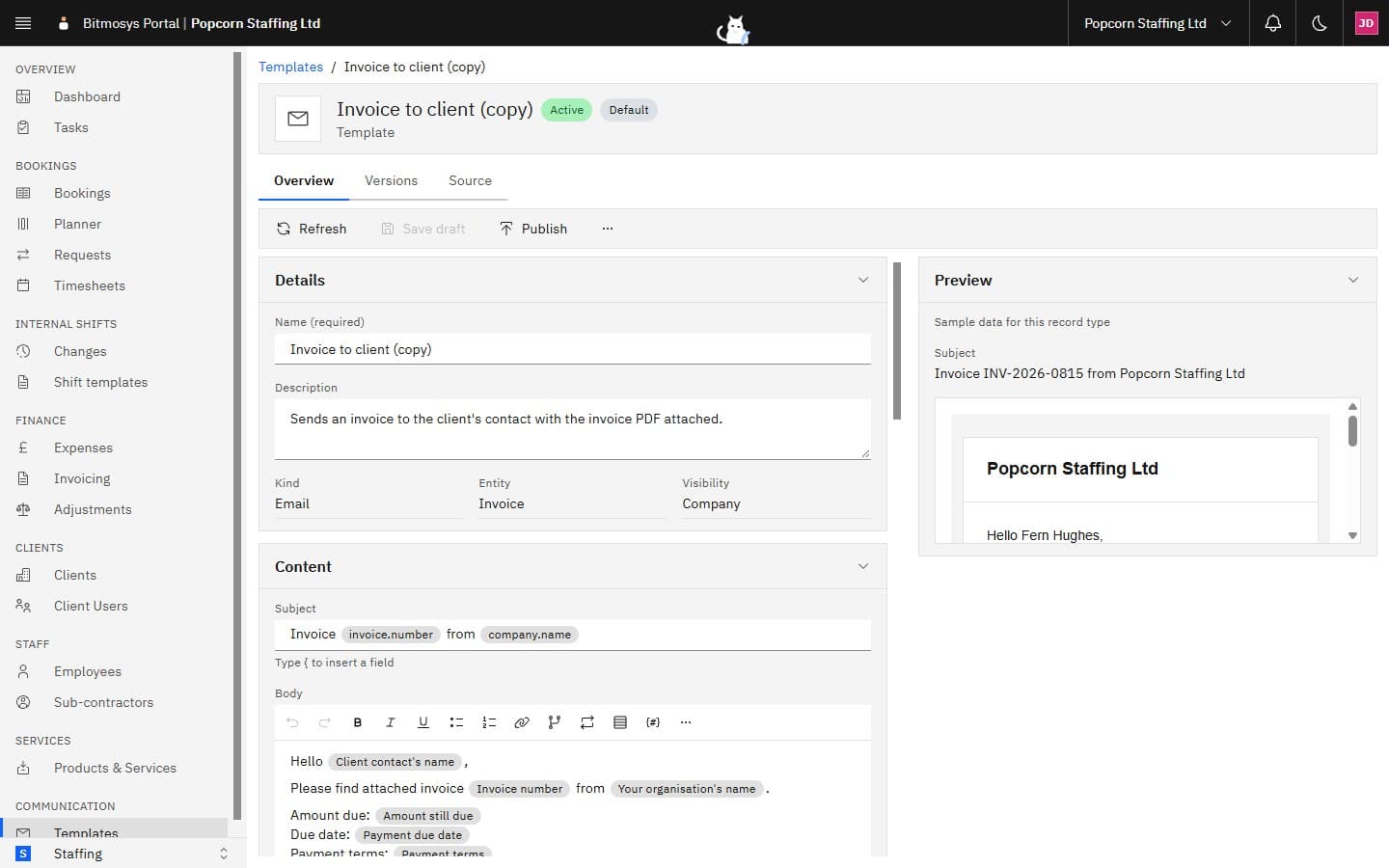
The header shows the template's name with its status tag and, where they apply, Default and Personal. Three tabs sit below it: Overview (the editor), Versions, and — for people with the templates permission — Source.
The command bar offers Refresh, Save draft, Publish, and a ⋯ menu with Set as default / Clear default, Duplicate and Archive.
The Overview has four sections:
- Details — the name and description (editable), and the kind, entity and visibility (fixed).
- Content — the Subject (email only) and the Body. Invoice email templates also have an Attach record PDF switch: when it's on, the invoice PDF rides along with every email sent from the template.
- Fields — every field the record type offers, in groups. Click one to drop it into the body at the cursor.
- Preview — on the right, the message rendered with sample data for the record type. It re-renders a moment after you stop typing, so you can see exactly what a recipient will get as you write. It says Write a subject or a message to see the preview until there's something to show.
The editor
The body is a rich-text editor. Its toolbar has Undo, Redo, Bold, Italic, Underline, Bullet list, Numbered list, Link, Condition, Repeat, Table, Insert field, and a More formatting menu with Heading 1–3, Strikethrough, Quote, Horizontal rule and Clear formatting.
Condition, Repeat and Table are covered in Blocks and tables.
Fields
A field is a chip in the text — Invoice number, Client contact's name — that's replaced by the record's value when the message is rendered. There are three ways to insert one:
- Type
{in the subject or the body. A picker opens listing the fields in groups; keep typing to narrow it, then pick one. - Click Insert field in the toolbar.
- Click a field in the Fields section.
Hover a chip to see the field's key. Click a chip to set two things:
- Fallback — Shown when the field is empty. "Hello there," reads better than "Hello ," when a contact has no name on file.
- Format — for dates (1 Oct 2026, 01/10/2026, 1 October 2026) and money (£1,250.00, GBP 1,250.00).
Every field, by record type, is listed in the Fields reference.
Saving, publishing and versions
- Save draft keeps your edits without changing what sends. A template that has never been published stays Draft; an Active one keeps sending its last published version while you work.
- Publish makes the draft the live version: the status becomes Active, the version number goes up, and every send from now on uses it. Publishing checks the template first — a message that doesn't mention the record's required fields (its number, your organisation's name) shows This template can't be published yet with the reason, and an SMS over the length limit is refused.
- Refresh reloads the template from the server. If you have unsaved edits it asks first: Discard unsaved changes?
- If a colleague saves the same template while you're editing, saving tells you Someone else changed this template — refresh, then re-apply your edit.
The Versions tab lists every published version — its number (the current one is marked), when and by whom it was published, and its subject. Expand a row for that version's details. A template that's never been published shows Not published yet.
Default, duplicate and archive
- Set as default marks a published company template as the one used first whenever someone sends that kind of message for that record type — the compose sheet opens with it selected, and the system default steps aside. There's one default per kind and record type; setting a new one replaces the old. Clear default goes back to the system default.
- Duplicate makes a copy (you choose its name and visibility). It's also how you take a personal copy of a company template you can't edit.
- Archive retires the template: it can no longer be edited, published or sent from. Archived templates stay in the list for the record, and you can duplicate one to bring its content back.
The Source tab
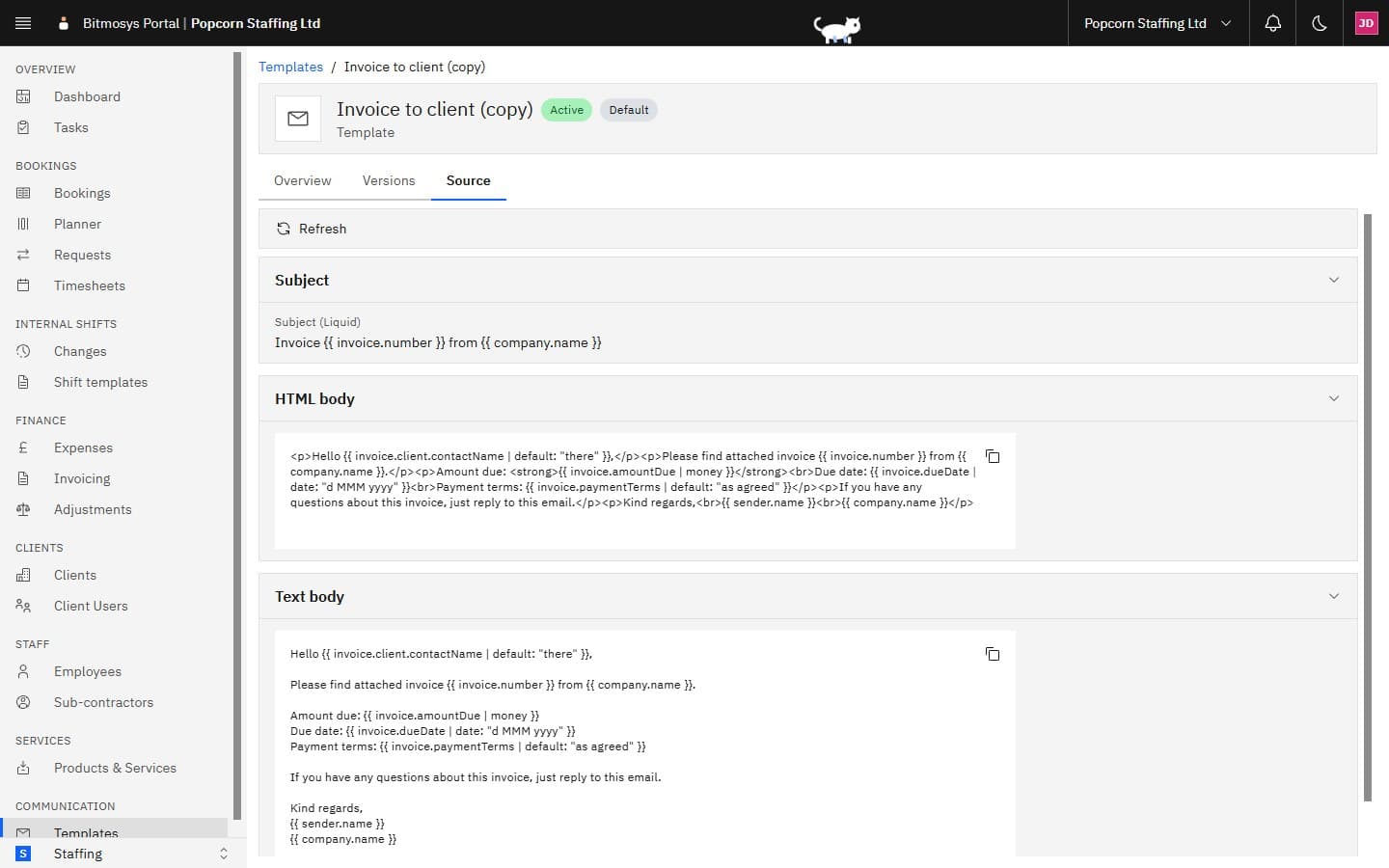
For people with the templates permission, Source shows what the editor's content compiles to: the Subject (Liquid), the HTML body and the Text body (Message for an SMS), with a copy button on each. It's read-only — useful for checking exactly what a field, condition or repeat turns into, or for keeping a copy outside Bitmosys. It shows the current draft, so save first to see your latest edits.