Reading the grid
What every mark on the Planner means — chip colours, the warning glyphs, leave and unavailability shading, the name cell, the Open shifts lane and the totals band.
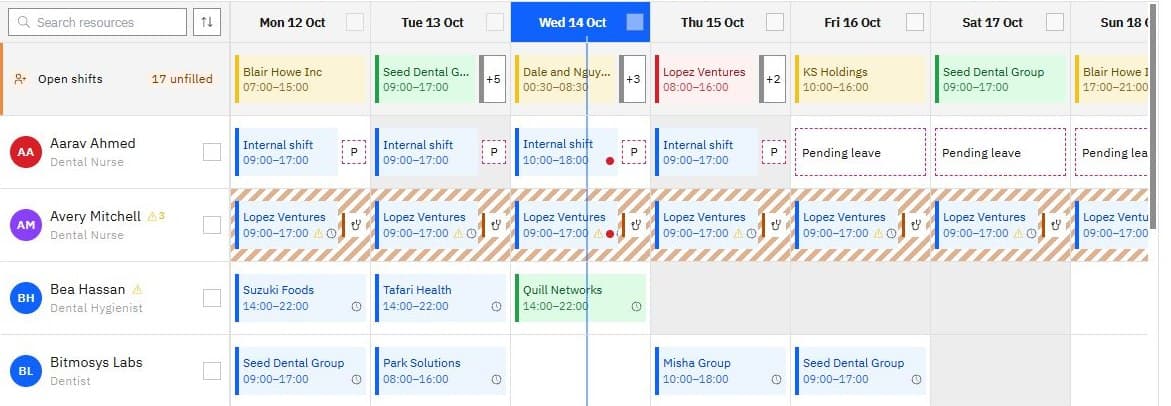
Chips
Each chip is one booking or internal shift. Its colour is the booking's status — the same colours as the Bookings list:
Colour | Status |
|---|---|
| Green | Confirmed |
| Blue | Assigned |
| Amber | Pending |
| Grey | Completed |
| Red | Cancelled |
The first line is the client (or Internal shift), the second the start and
end time with the glyphs that need your attention. Hover a chip for its full
name and times; click it to open the booking's panel (see
Planning the week).
When a cell holds more than fit, the last chip becomes a +N fold — click it
to open the day's list in a side pane.
A small dot in a chip's top-right corner means it has a change history; an orange dot means it was modified in your draft. Hover the dot to read the history.
Warning glyphs
The Planner marks the hard limits from Scheduling settings and a few states on the chip itself, so a busy week doesn't read as a wall of warnings. Hover a glyph for the detail — for example Would reach 56h against a 48h weekly cap or Only 9h rest between shifts (min 11h).
Glyph | Means |
|---|---|
| ⚠ amber triangle (with a count) | One or more working-time warnings: Weekly hours cap, Daily hours cap, Shifts per day, Rest between shifts, Weekly rest, Consecutive days, Travel time between sites, or Compliance expiring (a required document runs out before or during the shift). |
| ⚠ red triangle | Double-booked — the person is already on something at that time, a booking or an internal shift. |
| Clock | Unconfirmed — the worker has not yet acknowledged the shift in their app (when confirmation is on). |
| Crossed eye | Not published — saved, but the worker cannot see it yet. |
| People icon with a count | N requests — pending claims, give-aways or swaps on this item; decide them on the Requests page. |
| Amber triangle on a hatched cell | Leave conflict — assigned while on approved leave. |
| Coloured dot (today only) | The live status from the time clock: green On site, amber Late (the start has passed with no clock-in), red No-show (an hour past the start), grey Clocked out. On a late or no-show booking the panel offers Find replacement. |
Soft preferences — avoiding an isolated single shift, a short turnaround between two — are not marked on the chip; they show only while you drag.
The name cell
Each row starts with the person's avatar, name and role. A ⚠ with a count beside the name is the week's worker-level warnings (over the weekly cap, too many consecutive days, a document expiring…). With Show details on, the second line adds the week's hours and shift count.
Hover the name for the worker card: whether they are available, on shift now, unavailable today or on leave (and until when), their recent reliability, and any document that has expired or is about to. An inactive worker shows Worker inactive and should not be scheduled.
Cells
- Grey wash — the person is unavailable that day (no availability in Demand mode; time off in Coverage mode).
- Hatched — approved leave, in the colour of its leave category, with the category's icon and name on the block. Beside a chip the block folds to the category's icon or initial. A shift placed on approved leave carries the Leave conflict glyph.
- Dashed outline — Pending leave, not yet approved (a
Pbeside a chip). The Planner does not block a shift on pending leave; the request's panel warns of the clash. - A Bank holiday badge in a day's header names the holiday on hover.
Click a leave block to open the request itself — the panel shows the category, dates, who else is off at the same time and any shift that clashes, with Approve, Modify and Decline (see Holiday & Leave).
The Open shifts lane
The first row holds every booking nobody is on yet, with its N unfilled count. Its chips read like the others — client, time, glyphs — and a pending claim shows as N requests. Fill one by dragging it onto a person in Edit, from its panel, or by offering it to the team: see Open shifts, requests and series.
Figures
- Unfilled N · Fill N% in the filter row counts the client bookings on screen with nobody assigned, and the share that are filled.
- Shifts · Hours · Open in the foot are the week's totals.
- Show details (the + button) adds the week totals band under the header: per day and for the week, Hours, Pay cost, Revenue and Margin for an agency or a cleaning company; Labour cost, Forecast sales (editable) and Labour % for hospitality. The margin or labour figure turns amber below the threshold set in Scheduling settings. A day with bookings that have no rate yet is counted as uncosted. Pay figures appear only if you may see pay rates.