Filters, grouping and views
Narrow the Planner to one client, service or site, show only open shifts, group the rows by client, save a view, change the range, and export the week.
The filter panel
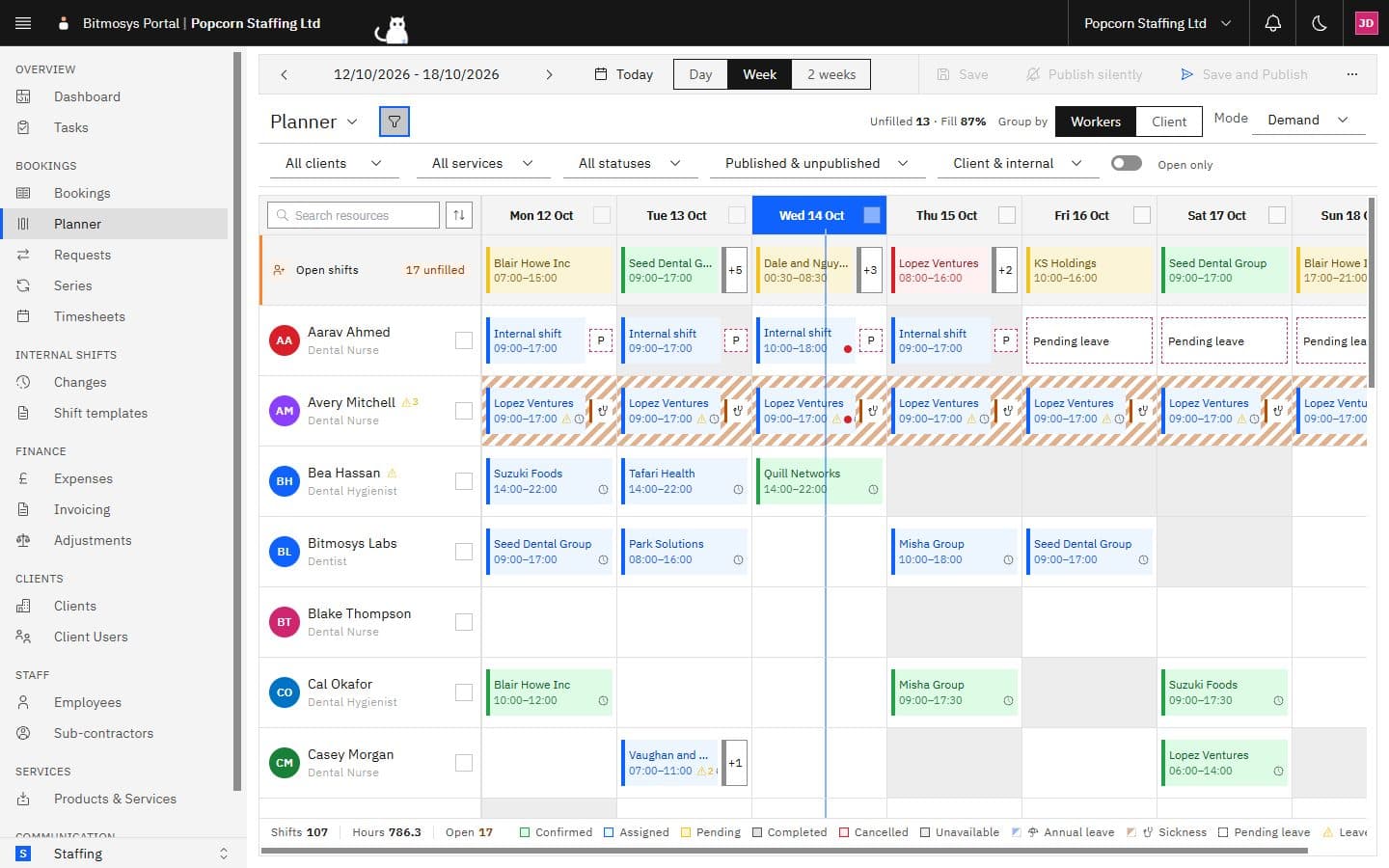
Click the funnel icon beside Planner to open the filters; click it again to put them away. A number on the icon is how many filters are active, and the panel stays open or closed the way you left it.
Filter | Choices |
|---|---|
| Client | One client, or All clients |
| Service | One service, or All services (a position, for hospitality) |
| Site | One site, or All sites — shown when the company has sites |
| Status | Scheduled, Completed, Cancelled, or All statuses |
| Publish state | Published, Not published, or Published & unpublished |
| Kind | Client bookings, Internal shifts, or Client & internal — shown when the week has both |
| Open only | Only the open shifts lane and the items nobody is on |
Clear N at the end of the panel removes every filter. Filters apply to the chips and the figures; the rows stay.
Group by, mode and search
- Group by Workers (the default) gives one row per person. Group by Client gives one row per client instead, listing that client's bookings by day — a read-only view, so nothing can be dropped on a client row.
- Mode switches the lens — Demand, Coverage or Visits — as described in the overview.
- Search resources above the rows finds a person by name; the button beside it sorts the rows by Name or Role, ascending or descending.
Saved views
The ▾ beside the Planner title is the view selector. Set the filters, grouping and mode the way you want them and choose Save as new view; the view is then one click away, and a view you share appears for colleagues under Shared with me. A dot on the selector means the view has unsaved changes.
The Planner remembers the view you last applied, so an unexpectedly empty week usually means a view is still on. Check the selector first and switch back to the default.
Saved views work the same way everywhere — see Working with lists.
Range and date
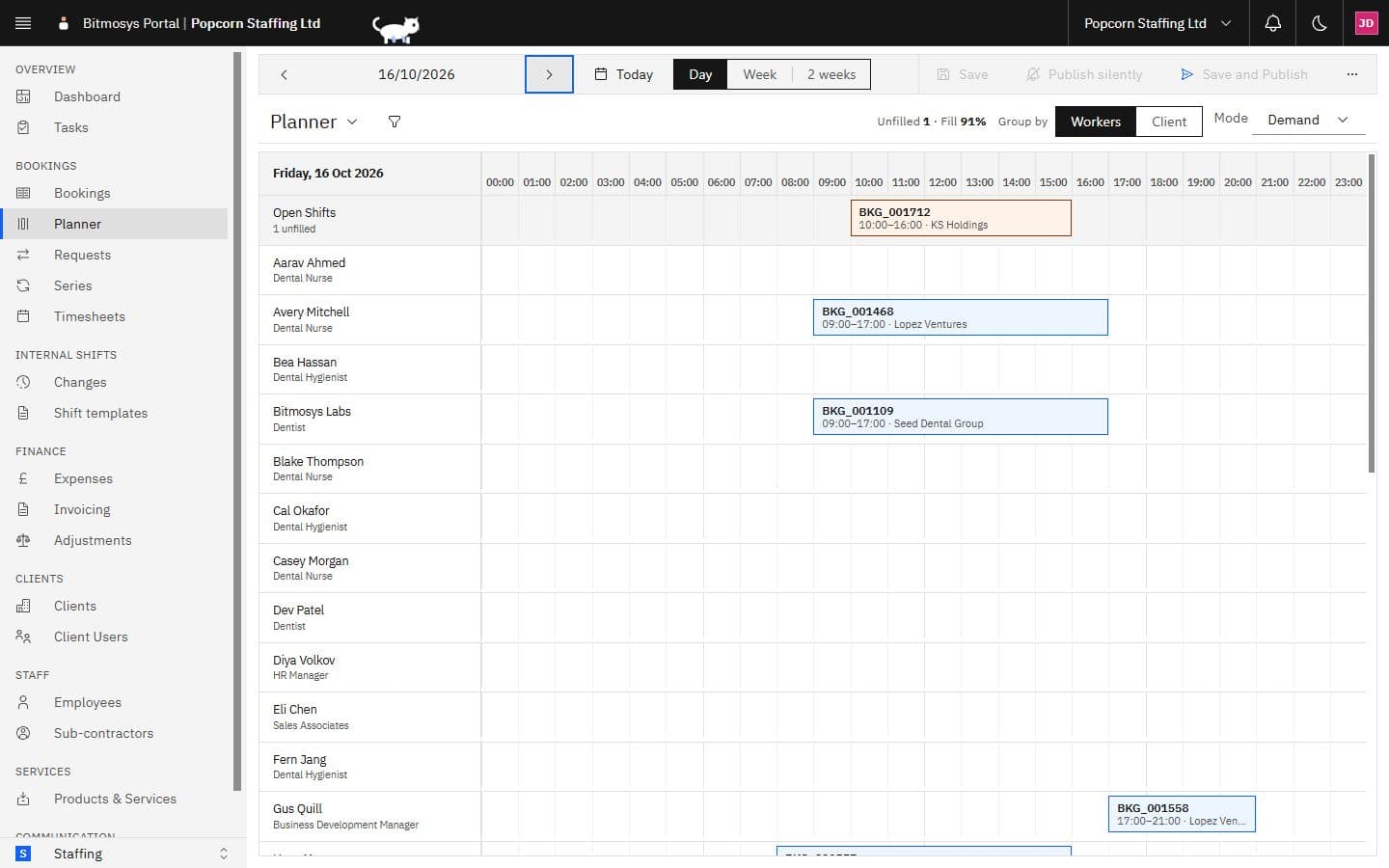
Day · Week · 2 weeks sets how much you see; the arrows step by that much and Today returns to the current day or week. Click the date between the arrows to pick one from a calendar. Edit is only available in the Week range (see Planning the week).
Details, refresh and export
- Show details / Hide details (the + and − buttons) adds or removes the week totals band and the per-person figures.
- Refresh re-reads the week.
- Export → Export as PDF or Export as CSV writes out the week as filtered: the PDF is the grid on a page, the CSV one line per item.